On this page
- Who needs to edit a Google review?
- What controls the edit option?
- How to edit a Google review
- Edit, delete, or leave it alone?
- Details that improve the result
- Google review problems and fixes
- Google’s review rules
- What editing really costs
- After you edit the review
- When editing a Google review is wrong
- What to do first with Google reviews
- Frequently asked questions
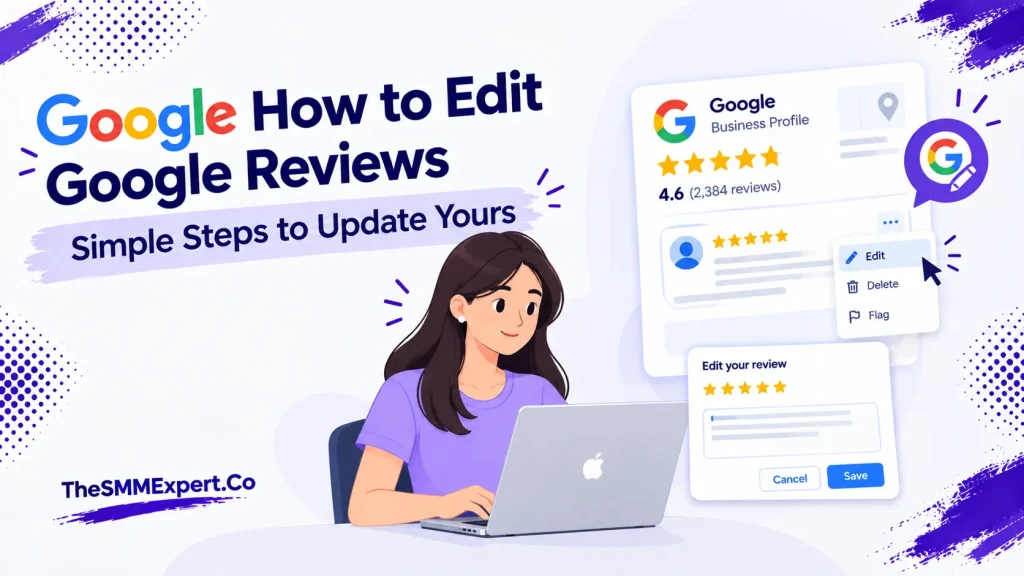
Editing a Google review is simple. Open Google Maps, find your review under Your contributions, choose the three-dot menu, select Edit review, change the text or star rating, and save it. You can edit only a review posted from your own Google Account.
The steps look slightly different on a phone and computer. Your account access, the review’s current status, and Google’s review policies can also change what you’re able to do.
Who needs to edit a Google review?
A customer who posted a review with a typing error usually needs only a quick edit. They can change the words, star rating, photos, or other details from Google Maps while signed in to the same account.
Someone who can’t find the review may be using another Google Account. They may also be looking at the business page instead of Your contributions. That reader needs an account check before trying anything else.
A business owner has a different problem. You can’t edit a customer’s review from your Business Profile, but you can reply to it or report it when it breaks Google’s rules. This page serves customers who want to change their own review.
The instructions assume the review still belongs to the same Google Account and hasn’t been removed by Google. If you need to change a review written by someone else, use the owner reply or reporting tools instead.
What controls the edit option?
The Google Account
The review is connected to the account that posted it. Sign in to every account you may have used, then open Your contributions and check the Reviews tab. If the review appears there, you’ve found the account that can edit it.
The device and app
Google Maps on Android, iPhone, and the web uses similar choices, but the buttons may move after an app update. If the menu is missing on a phone, update Google Maps or open Google Maps in a browser while signed in.
The review’s status
If a Google review is still visible, you can usually open it from your contributions. A review that was removed, hidden, or filtered may not offer an edit option.
The content
Changing a spelling error is different from changing a review into an advertisement or adding claims you can’t support. Google’s review rules apply after an edit, so the revised version still needs to describe a genuine experience.
The account check is the part people get wrong most often. If the review isn’t listed under your contributions, changing devices won’t fix the problem; finding the original account will.
How to edit a Google review
Use these steps for a review you wrote yourself. The menu names can vary slightly by device, but the review must appear under your Google Account before you can change it.
- Open Google Maps on your phone or computer. Confirm that the profile picture shows the Google Account that posted the review.
- Open your profile menu by selecting your picture or initials. The account menu should show the same account you used for the original review.
- Select “Your contributions.” On some screens, this appears inside the account menu or the main Maps menu.
- Open the “Reviews” tab. Find the business name and check that your review text or star rating is shown.
- Select the three-dot menu beside that review. The menu should include an Edit review choice when editing is available.
- Choose “Edit review.” Change only the part that needs correction, such as the written text, star rating, or attached photo.
- Review the whole post before saving. Check the business name, wording, rating, and photos for errors or private information.
- Select “Post” or “Save.” The updated review should return to the review list with your new wording or rating visible.
- Reopen the business listing and check the public review. A short delay can occur before every view shows the change.
The main judgment call is whether you should edit or delete the review. If the experience is still accurate, edit the incorrect part; if the whole review no longer reflects what happened, delete it and write a new, truthful review only if Google allows it.
If you can’t identify the account, recover the account through Google’s official account-recovery process rather than trying to bypass access controls. Stop there if the review involves threats, private information, or legal claims that need professional advice.
Edit, delete, or leave it alone?
The right action depends on what changed and how much of the original review is still accurate. Editing keeps the review history connected to the same experience, while deleting removes the post and any attached context.
| Situation | What to do | What it takes | What to watch for |
|---|---|---|---|
| Small spelling error | Edit the review | A few minutes | Recheck the full text |
| Wrong star rating | Edit the rating | A few minutes | Match your real experience |
| New customer experience | Edit with context | Extra writing time | Keep dates clear |
| Review no longer accurate | Delete the review | Short account check | Deletion may be permanent |
| Missing review | Check contributions | Account search time | Try the original account |
| Wrong business reviewed | Delete and reassess | Careful listing check | Confirm the location |
| Photo needs removal | Edit review media | App or browser access | Check all attachments |
Details that improve the result
Prepare before saving
Write the replacement wording in a note first if the change is large. Keep dates, prices, names, and promises accurate, and remove personal details that don’t need to be public.
Read the review as a stranger would. A sentence that made sense during the visit may sound unclear later if it uses “today,” “they,” or “the manager” without context.
Check the final version
Compare the star rating with the written opinion. A five-star rating paired with a complaint can confuse readers, just as a one-star rating with praise may look like an error.
Leave the original review alone when it still accurately describes the experience. A common mistake is rewriting an old review after one new visit without saying that the update reflects a later event; that can confuse readers and make the review seem inconsistent.
Don’t add repeated keywords, promotional language, or claims about another person’s private behavior. If Google removes the edited review, you may lose the public post instead of simply correcting it.
Google review problems and fixes
A missing menu usually points to the account, review status, or Google Maps interface. Check the least risky cause first, and don’t try to edit somebody else’s review.
| What you notice | What it usually means | What to do first | How to stop it happening again |
|---|---|---|---|
| Review isn’t listed | Wrong Google Account | Check other accounts | Note the posting account |
| Edit option is missing | Review unavailable | Reopen contributions | Keep Maps updated |
| Rating won’t change | Edit screen incomplete | Check every field | Review before saving |
| Photo remains visible | Photo edit incomplete | Reopen review media | Remove unwanted photos |
| Review disappeared | Google removed it | Check policy notices | Follow review policies |
| New text isn’t visible | Display delay | Refresh later | Check public listing |
| Business is incorrect | Wrong listing selected | Verify address | Confirm before posting |
If the review still doesn’t appear under the original account, use Google Maps help or account support. Don’t post the same review repeatedly, because duplicate content can create another policy problem.
Google’s review rules
Google says Maps contributions should reflect a genuine experience and shouldn’t contain fake engagement, conflicts of interest, harassment, personal information, or unrelated promotion. The Google Maps user-contributed content policy explains the categories that can lead to removal.
The rules apply to edited reviews, not only new ones. If your change adds a business connection, copied wording, threats, or private data, stop and rewrite it or leave it unpublished.
Google’s rules can change, and some tools differ by account or region. Check Google’s current policy page and the help screen shown in your account for the version that applies to you.
A business owner shouldn’t pressure a customer to change a review or offer a reward for doing so. If a review breaks a rule, report it through the business tools instead of attempting to change the customer’s post.
What editing really costs
A small correction usually costs only a few minutes and a signed-in Google Account. A full rewrite takes longer because you need to check the facts, rating, dates, photos, and privacy details again.
The bigger cost is losing clarity. Changing a review without explaining a later visit can make the timeline hard to follow, while deleting a review removes its public record and any photos attached to it.
Your actual time depends on the device, account access, and size of the change. Check the review in Your contributions first; that tells you whether you’re dealing with an edit, an account problem, or a removed post.
For businesses, the cost is different. You can spend time reporting or replying, but you can’t edit the customer’s words from your Business Profile. If the issue involves defamation, threats, or private information, ask a qualified legal professional before making claims about removal.
After you edit the review
Reopen the review from Your contributions after saving. Confirm that the text, star rating, and photos show the intended version, then view the business listing as a signed-in user if you need to check the public display.
Keep a copy of the final wording if the review records a dispute, warranty issue, or later update. Don’t store unnecessary personal information with that copy.
The sign that it needs attention again is a new factual change, not simply a wish to make the review sound stronger. If your experience changes, add clear context or remove the review when it no longer represents what happened.
If the edit doesn’t appear, refresh the app, try the web version, and check the original account. Don’t submit duplicate reviews while waiting.
When editing a Google review is wrong
Editing isn’t the right choice when the review belongs to someone else. A business should reply to the customer or report a policy violation through Google’s business tools.
It’s also the wrong choice when the review contains threats, private personal information, or a serious legal dispute. Save the relevant records and ask Google support or a qualified lawyer what to do; don’t publish more sensitive details.
Finally, don’t use an edit to turn a real review into an advertisement, a reward request, or copied marketing text. Remove unrelated material and keep only your honest experience, or leave the review unpublished.
What to do first with Google reviews
First, open Google Maps while signed in to the exact account that posted the review. Select your profile photo, open Your contributions, and check the Reviews tab for that business. If access is correct, the review should appear with the three-dot menu for editing and the saved text.
If you use more than one Gmail or Workspace account, switch accounts before assuming the review disappeared. If the review still isn’t there, it may not have finished posting, or Google may have filtered or removed it. Don’t repost the same wording; that can make the problem harder. Fix the account issue or contact Google support next.
Frequently asked questions
Can I edit a Google review from my phone?
Yes, you can edit it from the Google Maps app when you’re signed in to the account that posted it. Open Your contributions, choose Reviews, open the three-dot menu, and select Edit review. The exact button position can change after an app update.
Why can’t I edit my Google review?
The review usually isn’t connected to the signed-in account, or Google has removed or restricted it. Check every Google Account you use and look under Your contributions. If it still isn’t listed, use Google Maps help instead of posting a duplicate review.
How long does it take for an edited Google review to appear?
The edited review should appear after you save it, but the public business listing may take a short time to refresh. Reopen the listing and check again later. If the new version never appears, confirm that the edit was saved under the correct account.
Is it safe to edit a Google review?
Yes, editing is safe when the review stays truthful and follows Google’s content rules. Don’t add private information, threats, copied text, or claims that aren’t based on your experience. Google can remove an edited review if the new content breaks its policies.
What happens if I delete my Google review?
The review and its public rating contribution are removed from your account and the listing. You may not be able to restore the same wording or photos, so copy anything you legally need before deleting it.
Does it matter if I change the star rating?
Yes, the new star rating becomes part of the review readers see. Make sure it matches the updated text and your actual experience. A rating change without clear, truthful wording can make the review seem inconsistent.
Can a business edit my Google review?
No, a business can’t edit a customer’s review. The business can reply, report a policy violation, or ask Google to review the content. Only the Google Account that posted the review can change its wording or rating.
 Written byAbdul HalimAbdul Halim writes about online reputation management and the challenges businesses face when trying to build trust online. His content covers customer feedback, online reviews, how people see brands, reputation monitoring, negative feedback, and ways to maintain a strong online presence. Abdul shares simple steps businesses can use to learn what customers say, respond to reputation concerns, build credibility, and earn lasting trust. He wants to help people understand reputation management more easily and give businesses ideas for keeping and growing their online reputation.LinkedIn