On this page
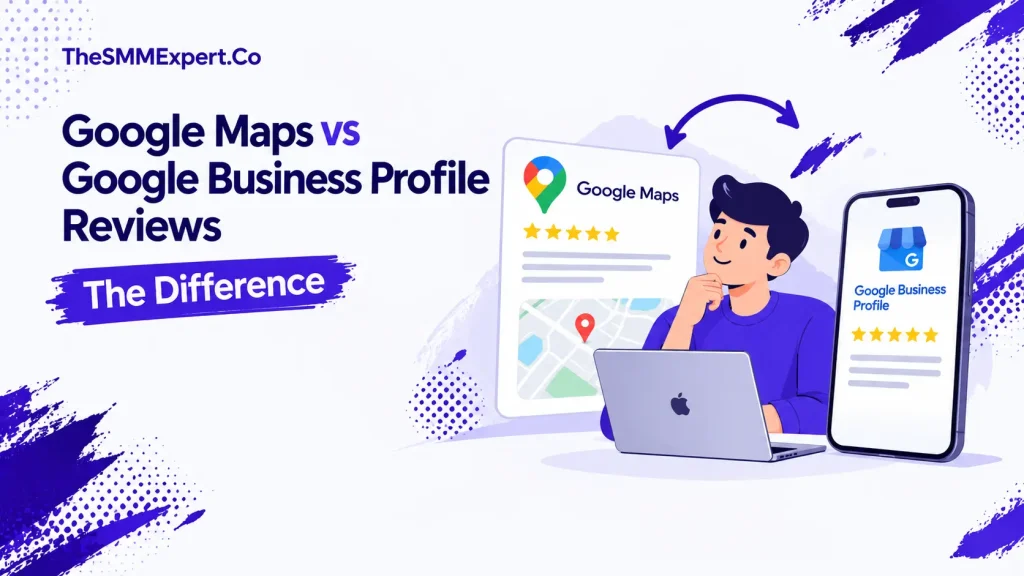
For most businesses, google maps vs google business profile reviews isn’t a choice between different review systems: Google Maps shows the public view, while Google Business Profile gives the owner tools to read and manage reviews. Use Business Profile when you need to reply, report a problem, or track several locations. Use Maps when you’re checking how customers see the listing or researching another business. The reviews usually come from the same Google listing, so changing the screen doesn’t create a separate review score.
Google Maps or Business Profile?

Google Maps and Google Business Profile serve different users, even when they show the same customer feedback. This table puts the main review options side by side.
| Method | How long | Effort | Cost | Best for |
|---|---|---|---|---|
| Google Maps listing | 1–3 minutes for a quick check | Low | Low | Seeing the public listing |
| Google Business Profile on Search | 2–5 minutes for owner actions | Low | Low | Replying to recent reviews |
| Google Business Profile Manager | 5–15 minutes for a wider review check | Medium | Low | Handling several locations |
| Google Maps app | 1–5 minutes on a phone | Low | Low | Checking reviews while away from a computer |
Google Maps is the customer-facing place. It shows the business name, rating, written reviews, photos, questions, hours, and location details. You don’t need owner access to read this view.
Google Business Profile is the owner’s control area. It lets an authorized user reply to reviews, report reviews that may break Google’s rules, and manage more than one business profile. The exact buttons can change as Google updates its interface, so check Google’s current help instructions when a control is missing.
The public Maps view is useful for spotting what customers see. The Business Profile view is better for action. If you only want to compare a local business with its competitors, start with Maps; if you need to respond to feedback, use Business Profile.
Google Maps public review view
Google Maps is the simplest method when you want to see a business as a customer sees it. It’s also useful for checking whether the public listing shows the right name, category, hours, location, and recent review activity.
With several locations, compare the street address and map pin, not just the business name. Reviews from another branch can distort the picture.
- Open Google Maps in a browser or the mobile app.
- Search for the exact business name and city.
- Select the correct listing, checking the address before you continue.
- Choose the review area and sort or filter the reviews using the options Google shows.
- Read the newest reviews and compare them with older comments for repeated themes.
- Open individual reviews to check whether a response is visible and belongs to that location.
The exact filters can differ by device and account. A business with several locations needs extra care, because similar names can lead you to the wrong listing.
Maps is good at showing the customer experience. It can reveal whether a reply is visible, whether a review belongs to the correct location, and whether public details look outdated. It’s also the better choice when you don’t manage the profile yourself.
Its weakness is limited owner control. You can’t use the public view as a full review-management workspace, and you may miss tools available only to the verified profile owner.
A disagreement with the business is not, by itself, proof that a review violates policy. Report only a specific rule problem you can identify.
If you find a review that appears to violate Google’s content rules, don’t threaten the writer or try to remove it yourself. An authorized profile manager should report it through Google’s review tools, while legal or serious reputation issues should go to a qualified attorney.
Business Profile on Google Search
The Business Profile panel in Google Search is usually the fastest owner method. It brings management tools close to the public listing, so an authorized user can answer a review without opening a separate dashboard. The reply is public, and the reviewer may be notified, so check the business name, star rating, and review text before posting.
- Sign in to the Google Account that manages the business.
- Search Google for the verified business name or for “my business.”
- Select the correct profile if more than one appears.
- Open the reviews area and choose the review that needs attention.
- Write a clear reply, then preview it before publishing.
Keep the reply tied to the customer’s actual point. A short answer that acknowledges the issue and offers a private contact route is usually more useful than a long defense of the company. Don’t promise a refund, replacement, or other remedy unless the business can authorize and deliver it.
This method works well for one location and quick responses. It also lets you see the public listing near the management controls, which reduces the chance of replying to the wrong business. If several staff members respond, agree on who handles reviews so the customer doesn’t receive conflicting promises.
The trade-off is that Search can feel crowded when you manage several locations or need a wider review process. If the profile doesn’t appear, the account may lack permission, the business may not be verified, or Google may be showing a different listing. Check the address and profile name before selecting a result.
If the review mentions personal health information, payment details, or another private matter, don’t repeat those details in a public reply. Ask a manager or privacy professional to review the response before it goes live.
Business Profile Manager dashboard
Business Profile Manager is the better method when reviews involve several locations, different users, or a regular process. It gives you a more organized place to move between profiles instead of relying on one public Search panel.
- Open Business Profile Manager with an account that has owner or manager access.
- Choose the location or location group you need to review.
- Open the review section for that profile.
- Check the reviewer’s comments, the location name, the address, and any existing reply.
- Draft a specific response and publish it only after checking that the selected location is correct.
Separate work by location before you write. A reply meant for a hotel branch, clinic office, or store in one city shouldn’t appear on another profile with a similar name. When two profiles look alike, confirm the street address, suite number, phone number, or service area first.
The dashboard is strong for organization and access control. It’s the best fit when more than one person handles customer feedback or when you need to work through reviews in a consistent order. If an employee or agency is helping, give that person profile access instead of sharing the owner’s login. Remove that access when work ends.
It also helps prevent duplicate or mismatched replies. Before you answer, look for an existing response and check whether someone has already handled the issue elsewhere.
Its weakness is extra setup and screen movement. A single-location owner who only needs to answer one review may find Search quicker.
Email alerts can point you to new reviews, but they aren’t a replacement for the profile tools. They’re easy to overlook, and the email may not show the context you need before replying.
Which review method should you use?
The right choice comes from the job in front of you, not from the label on the screen. If you’re checking public trust, use Maps; if you’re managing customer feedback, use an owner view.
When you’re in a hurry
Use Business Profile on Google Search. It puts the review and reply control in one place, so you can handle a recent comment without working through a larger dashboard. This is the quickest route for one verified location.
The cost of that speed is less organization. If you’re switching among several branches, pause and use Business Profile Manager instead; a fast reply on the wrong location can create a bigger problem than a delayed reply.
When you’re doing this for the first time
Use Google Maps first, then move to the Business Profile tools. Maps helps you confirm the public listing, location, and review you’re looking at. After that check, an authorized owner can open the management view and reply.
This approach is slower than jumping straight into a reply, but it lowers the chance of confusing two businesses with similar names. If you don’t have owner access, you can read the listing but won’t get the full management controls.
When you want the best possible result whatever it takes
Use Business Profile Manager. It gives you the most useful structure for reviewing several locations, checking existing replies, and assigning the work to the correct profile.
The trade-off is time and effort. A careful workflow takes longer than opening one review in Maps, but accuracy matters more when a reply represents a company or covers multiple branches.
Owners can use Google’s own guidance for managing reviews to read and reply to reviews and report content that may violate Google’s rules.
Rules for managing Google reviews
Every method still needs the same basic checks. Google controls the platform rules, while the business controls the tone, accuracy, and privacy of its reply.
Start by confirming the listing before you act. Check the business name, address, and location, especially when several branches share a brand name. Then read the full review rather than replying to its star rating alone.
Prepare a simple response plan first. Decide who can reply, which issues need a manager, and where sensitive cases should move offline. Don’t ask a customer to post private details in a public comment.
Check the review and the draft reply partway through the process. Make sure you’re on the right location, haven’t included confidential information, and haven’t promised a refund, replacement, or legal remedy without approval.
At the end, read the published reply as a stranger would. Fix spelling, remove personal details, and check whether the answer addresses the customer’s actual concern. If the review looks false or abusive, use Google’s reporting route; don’t retaliate with a public accusation.
The main limit is that review visibility and filtering can change by listing, device, account, and Google’s current policies. You can find your exact figure on the live public listing, but you can’t assume every customer sees the same order or controls.
If a case involves threats, discrimination, medical information, payment disputes, or possible defamation, stop the normal reply process. Send it to the appropriate manager, privacy specialist, or attorney instead of trying to solve a serious risk in the comment box.
Conclusion
Set a simple review routine for the coming week: check your listing as a customer, then sign in to respond where needed and flag anything that looks wrong. Keep replies calm, useful, and quick. Over time, you’ll help people trust what they see before they choose you.
Frequently asked questions
Can I reply to Google Maps reviews without a Business Profile?
No. You need authorized access to the business’s Google Business Profile to reply as the business. Anyone can usually read public reviews on Maps, but reading and responding are different permissions. If you own the business and can’t access the profile, check that you’re signed in to the correct Google Account. You may also need to request access from the current owner or complete Google’s verification process before management tools appear.
Why do Google Maps reviews and Business Profile reviews look different?
They can look different because the two screens serve different purposes. Maps is designed for public browsing, while Business Profile includes owner controls and management information. Google may also change the order, filters, or visible tools based on the device, location, account, and current interface. A different layout doesn’t automatically mean the business has two separate review collections. Confirm the business name and address before comparing what you see.
How long does it take for a Google review reply to appear?
A reply can appear after Google processes and publishes it, but Google doesn’t promise one universal display time for every case. The result can change if the reply is still under review, the profile has access issues, or the page hasn’t refreshed. Check the public listing after signing out or using a private browser window. If the reply still doesn’t appear, review the account permissions and Google’s current support guidance.
Is it safe to answer a negative Google review publicly?
Yes, if you keep the reply factual and protect private information. Don’t include order numbers, medical details, phone numbers, addresses, or accusations about the reviewer. A useful response acknowledges the concern, gives a brief next step, and moves personal discussion to a private channel. If the comment includes threats or sensitive claims, ask a manager or qualified professional to review the response before you publish it.
What happens if I report a Google review?
Google reviews the report against its content rules, but reporting doesn’t guarantee removal. A low rating, harsh opinion, or complaint about service may stay online simply because the business dislikes it. Save the review link and explain the specific rule you believe it breaks. Don’t submit repeated reports just because the first decision was unfavorable. For serious legal issues, keep records and seek professional advice.
Can customers edit their Google reviews after a business replies?
Yes, a customer can change a review’s text or rating after a business responds. An updated review may make the original reply look incomplete or unrelated, so check important conversations again later. If resolved, add a short, accurate update without claiming the customer must change the rating, and never pressure them to change the review in exchange for a benefit.
 Written byAbdul HalimAbdul Halim writes about online reputation management and the challenges businesses face when trying to build trust online. His content covers customer feedback, online reviews, how people see brands, reputation monitoring, negative feedback, and ways to maintain a strong online presence. Abdul shares simple steps businesses can use to learn what customers say, respond to reputation concerns, build credibility, and earn lasting trust. He wants to help people understand reputation management more easily and give businesses ideas for keeping and growing their online reputation.LinkedIn