To add Trustpilot widget to website, copy the two code snippets you get from Trustpilot, add one in your site’s <head>, and the other one in the <body>where you want to show the widget. You can get one widget for free, but the customizable widgets require a paid plan.
The system is the same across platforms such as Wix, Squarespace, Webflow, BigCommerce, and WordPress. This guide will show the exact process to add the widgets, the cost of those widgets, and fixes to some common problems.

What is a TrustBox widget and why use one
A TrustBox is a review widget that pulls live data from your Trustpilot Business profile and shows on your own web pages. You can use this widget alongside the Google Review Widget and testimonial carousels to build trust with your customers.
The Trustbox (the widget) will show the TrustScore, review count, scrolling review cards, a star rating, and a review-collecting button to invite more customers to write reviews. Businesses use this one to improve their conversions.
Trustpilot has over 330 million reviews with 60+ million monthly users. The users recognize the green stars in the widget, and when shoppers see this proof on your product page or home page, they don’t hesitate to buy. The research backs the claim. 73.6% of visitors are likely to purchase from a business showing Trustpilot reviews.
One thing to understand here is that the widget is not the same as a badge. A badge offers a rating, logo, or star count that you can use for email signatures, headers, and footers, whereas a widget is all those things plus a full scrolling wall of review cards. So do not get confused.
Types of TrustBox widgets (and where each works best)
Trustpilot offers different types of widgets in its library, and using the best one matters the most for conversion and trust building. Let’s understand the common ones and their usage.
| Widget type | What it shows | Best placement |
|---|---|---|
| Micro Combo. | TrustScore review count + star rating +, compact. | Website header, navigation bar. |
| Micro Review Count. | “See our X reviews on Trustpilot” one-liner. | Add next to CTA buttons, checkout. |
| Mini | TrustScore, reviews, and stars. | Sidebar or Footer. |
| Starter | Review count + review CTA + logo. | Content pages or blog posts. |
| Carousel/Slider | Auto-scrolling individual review cards. | Homepage or product pages |
| Grid | Multiple full reviews. | Dedicated testimonials or reviews page. |
| List | Reviews stacked vertically. | Sales pages, especially long-form. |
| Review Collector | Button inviting customers to review. | Order confirmation or post-purchase. |
| Product Review | Reviews for a specific product (via SKU/ID). | Single product pages. |
Step by step: How to generate your TrustBox code
You must generate the codes first. To do that, follow these steps.
- Log in to Trustpilot Business.
- Open Showcase (“Share & promote” for older accounts).
- Find and click Website widgets and browse the layouts.
- Use filters to narrow widget layouts.
- Choose your widget and customize it. Adjust the width, theme, height, language, and review filters.

Once you’re happy with the widget preview and basic settings, click Get code. Trustpilot then provides two pieces of code for the installation. - Click Get code. You will get two snippets: a script code and an HTML tag like that image.


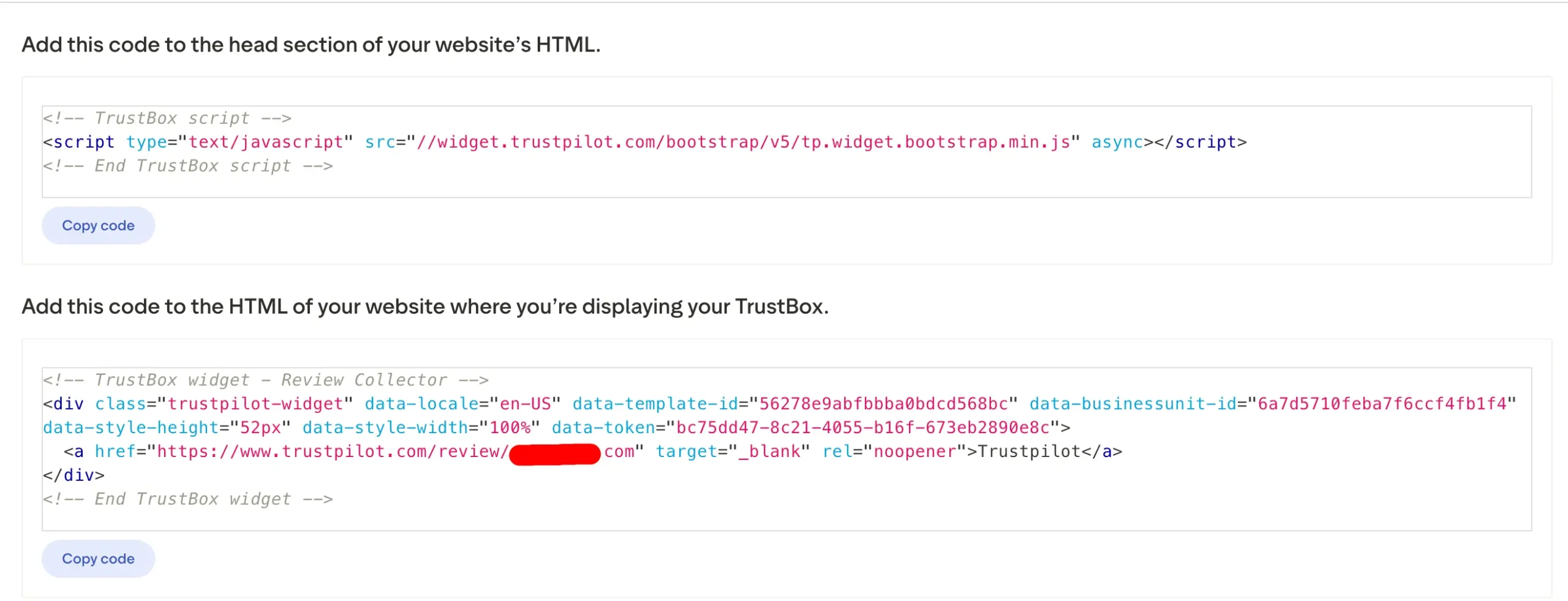
These two snippets are different, and understanding them properly will save you time. To make it simple, consider the script as a projector and the HTML tag as a screen. You need to run the projector to show the screen. That’s why the bootstrapper script loads once per site, but the tag marks a spot where the widget appears.
Understanding this will help you fix the common failure. The bootstrapper script scans for elements when the page first loads. If the widget’s HTML loads after the scan inside a modal, content, slider, or tab, the widget cannot initialise and visitors can see a plain “Trustpilot” text link.
Add the widget to a plain HTML site.
For a manual or static site, paste the two snippets in two places. The bootstrap script must be inserted inside your <head>. Doing it once is good enough.
The script will look like this.
<!– TrustBox script –>
<script type=”text/javascript”
src=”//widget.trustpilot.com/bootstrap/v5/tp.widget.bootstrap.min.js”
async></script>
<!– End TrustBox script –>
Once you have placed that inside the <head>, add the widget HTML tag in the <body> where you want to show the widget. It will look like this.
<!– TrustBox widget –>
<div class=”trustpilot-widget”
data-locale=”en-US”
data-template-id=”YOUR_TEMPLATE_ID”
data-businessunit-id=”YOUR_BUSINESS_ID”
data-style-height=”130px”
data-style-width=”100%”
data-theme=”light”>
<a href=”https://www.trustpilot.com/review/yourdomain.com”
target=”_blank” rel=”noopener”>Trustpilot</a>
</div>
<!– End TrustBox widget –>
The data-businessunit-id connects the widget to your Trustpilot profile, whereas the data-template-id sets the layout.
Add Trustpilot widget on WordPress.
Adding the widget on WordPress is easier. You can follow one of these two methods.
Manual method.
- Go to Appearance > Theme File Editor > header.php.
You can use a header-injection plugin like WPCode to make it safer. Then simply add a Custom HTML block to the page and paste the widget tag. Use an HTML widget for Elementor.
Plugin method
- Use a dedicated reviews plugin that will connect the Trustpilot profile to drop widgets through shortcodes. This is an easier method if you want pre-styled feeds without using code.
Add a Trustpilot widget on Shopify.
You need to place the script in the theme for Shopify. Then the widget can be placed where you need.
- Go to the Online Store from Shopify > Themes > Edit code.
- Open layout/theme.liquid and insert the script tag before the closing </head>.
- Save it.
- Add a Custom Liquid section and paste the widget tag
- You can also add it into a template like product.liquid.
Use Product Review TrustBox for product-specific reviews. It will pull reviews for a single product through its ID. Remember that installing the native Trustpilot Shopify add-on does not insert the widget automatically. You need to insert the body code manually.
Other platforms: Wix, Squarespace, Webflow and BigCommerce
For other platforms, you need to use the same two-snippet logic. The paste locations will be different.
- For Wix: Add the widget tag through the Embed HTML iframe element and test on mobile for adjustment of height.
- For Squarespace: Go to Settings > Advanced > Code Injection > Header to add the script and use a Code block for the widget tag. Personal plans block custom codes. So use a business plan.
- For Webflow: Add the widget through an Embed element and add the script in site-wide custom code.
- For BigCommerce: Go to Storefront > Script Manager to add the script and insert the widget HTML in your template.
When to Add a Trustpilot badge with HTML
You should add a Trustpilot badge for a lightweight trust signal if you don’t want a full review display. These Micro Combo and Micro Star badges will show the rating and star count. It is small, which makes the page lightweight while conveying the same trust signals.
To add this, use the same method – insert the script in the <head>, and the HTML tag in the page where you want to show it. However, Badges look better in the header, footer, and email signatures. They carry weight for credibility yet rarely clash with your theme. You can use a basic badge in your free place just like a basic widget.
Free vs paid: what a Trustpilot widget really costs
Trustpilot offers a freemium plan for users where you can claim your profile, collect a limited number of reviews, use one badge, and one basic TrustBox widget in the free plan. If you want to enjoy the full library with customizable widgets and badges, you need to upgrade to a paid plan.
The paid plan starts at $99/month and goes up to million dollars based on your domains and business size. You can even bargain the rate for higher domains. We have a complete guide on Trustpilot Pricing & Plans 2026. Check it out for full understanding. But remember that you need to pay annually and upfront to get the paid plan, and once you get the plan, you cannot cancel the plan.
Will a Trustpilot widget show stars in Google?
No, the Trustpilot widget will not show stars in Google. However, Google will collect the ratings and show them in the snippets based on its own rules. The visual widget and rich snippet you see on the search results are different.
However, you can add schema markup and use a product-level review widget to help Google’s snippet get your ratings and show in its snippet. Besides, you need to increase the reviews on the Trustpilot profile to get into the snippet. So work on that as well.
Troubleshooting: widget not showing? Common problems and fixes
If your widget is now showing, there might be some underlying reasons that need fixing. It is almost any of these six issues.
| Problem | Reasons | Fix |
|---|---|---|
| Only the word “Trustpilot” in a plain link. | The bootstrapper ran before your widget’s HTML, located inside modals, sliders, tabs, and JavaScript-injected content. | Re-trigger it through window.Trustpilot.loadFromElement() after the element loads. |
| The widget is invisible. | The script tag is missing inside <head>. | Insert the script once site-wide, and the widget will start rendering. |
| Stuck on “Loading…” forever. | The data-businessunit-id or domain doesn’t match the Trustpilot profile. | Copy the code again from your dashboard. |
| Widget shows on the homepage only. | You added the script or HTML tag to one template, not sitewide. | Insert the script in the global header and add the HTML tag where you want to show it. |
| Reviews not updating | Browser or CDN cache problem. New reviews often take up to 24 hours. | Hard refresh the page through (Ctrl+F5 on Windows, Cmd+Shift+R on Mac). Wait for 24 hours. |
| Wrong font or broken layout. | The theme’s CSS is overriding the widget. | Simply wrap the snippet tag in a <div> with a fixed width and then let the iframe scale inside it. |
| Carousel cut off on mobile. | Common with Wix and iframe embeds. | Increase the embed or iframe height and use a smartphone to test. |
| Nothing renders at all. | You might be on a Personal plan, or the theme blocks external scripts. | Ensure you are on a Business plan and check script permissions. |
Where to place your widget for the biggest conversion lift
The best place to place your widget for the biggest conversion lift is in your header, product or service page, and near the checkout or add-to-cart button. People will see the budget in the header right after they land on your page. The product page widget will create credibility and remove confusion. The widget on the checkout page will remove purchase anxiety and cut last-minute abandonment. You can also add a mini widget in the footer that will be visible no matter what pages your customers are.
Frequently asked questions
Is the Trustpilot widget free?
Yes, Trustpilot offers one basic widget that you can use for free. However, for customized and more widgets, you need a paid plan.
Where do I paste the Trustpilot widget code?
You need to place the code in two places. One is inside the <head>, and the other is in the <body>.
Why isn’t my Trustpilot widget showing?
Your Trustpilot widget is not showing because of missing tags, installing a plain link, or loading of HTML code after the bootstrapper’s initial scan. Re-trigger the loader with loadFromElement() to solve this problem.
Do Trustpilot widgets slow my website?
Yes, they can slow down your website a bit. But adding one page will not harm and load the page under 100 milliseconds.
Can I show Trustpilot star ratings in Google search?
Yes, you can show Trustpilot star ratings in Google search, but it is not up to you. Google’s automated extensions or structured data widgets will get the data from your profile and show it to the audience.
Can I filter which reviews appear in my widget?
Yes, you can filter which reviews appear in your widget. TrustBox widgets offer such filters by star rating and language.
Do I need coding skills to add a Trustpilot widget?
No, you don’t need coding skills to add a Trustpilot widget. Simply place the HTML code in the customer HTML block or code-injection area on WordPress, Shopify, Wix, and Squarespace. Now is the time for AI. So you can also use AI to help.
Can I customize the widget’s colours and design?
You can customize the widget’s colours and design within limits (size, light/dark themes, and specific font colors). Trustpilot’s branding or layout will be the same and cannot be changed.
Does the Shopify Trustpilot app add the widget automatically?
No. You need to add the widget manually to show the rating.
Why does my Trustpilot widget only show on the homepage?
Your Trustpilot widget only shows on your homepage because you added it to one template instead of sitewide. Fix the issue and the widget will show on the entire site.
How do I remove a Trustpilot widget?
Delete the code from your header and body, and you are ready to go. If it keeps showing, hide its wrapper with CSS (display: none) and clear the code from your theme.