On this page
- Key Takeaways
- How to Add a Link to an Instagram Story
- Before You Add the Link
- Add a Link Sticker
- Customize the Sticker
- Share the Story
- Why Can’t I Add a Link?
- Make Links Work Better
- Track Story Link Taps
- Link Options Compared
- Troubleshoot Common Problems
- Safety and Compliance
- Frequently Asked Questions
- Conclusion
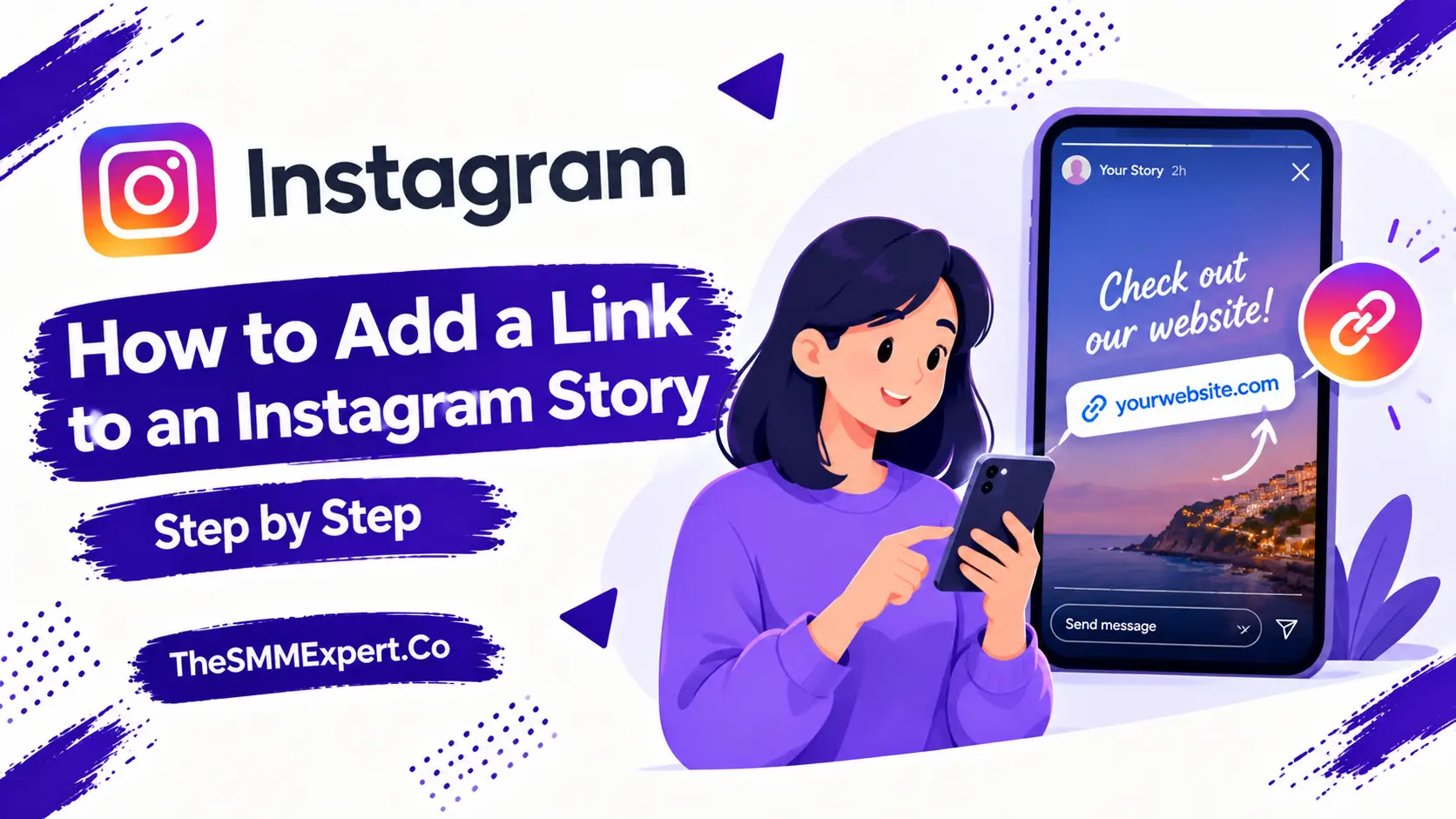
Add a link to an Instagram Story by creating or uploading a Story, tapping the Sticker icon, choosing Link, entering a web address, customizing the sticker text, and publishing the Story. The link sticker works in the Instagram mobile app, and viewers can tap it to open the destination in Instagram’s in-app browser or their default browser.
Key Takeaways
- Use the Link sticker instead of typing a URL into a photo or video; typed URLs aren’t usually tappable.
- Paste the complete address, including
https://, into the sticker’s URL field. - Change the sticker text to a clear action such as Shop now, Read the guide, or Book a call.
- Test the published Story from another account or device before promoting it.
- Use one primary destination per Story so viewers know exactly what to tap.
- Review Instagram Insights for link taps, Story exits, replies, and forward taps.
How to Add a Link to an Instagram Story
Instagram’s link sticker lets eligible accounts share a clickable destination in a Story.
The process is similar across personal, creator, and business accounts. After updates, look for the sticker icon rather than relying on its position.
| Step | What to do | What you should see |
|---|---|---|
| 1 | Open Instagram and tap Your story or the plus button | The Story composer opens |
| 2 | Capture a photo, record a video, or choose media from your camera roll | Your Story draft appears |
| 3 | Tap the Sticker icon | A panel of interactive stickers opens |
| 4 | Choose Link | A URL field appears |
| 5 | Paste or type the destination address | Instagram previews the link sticker |
| 6 | Tap Done and position the sticker | The sticker sits on your Story |
| 7 | Tap Your story or Share | Your Story publishes with a tappable link |
1. Open the Story composer
Launch Instagram on an iPhone or Android phone. From the home screen, tap your profile photo with the plus sign, swipe right from the feed, or tap the plus button and select Story.
- A new photo from the in-app camera
- A video recorded in the Story camera
- A photo or video from your camera roll
- A text-only Story with a colored background
- A repost of an eligible public post
Choose content with enough empty space for the sticker.
2. Add the Link sticker
With your content open in the Story editor, tap the square smiley-face Sticker icon at the top. Scroll through the sticker tray or use its search field, then select Link.
https://www.example.com/blog/articlehttps://www.example.com/products/blue-jackethttps://www.example.com/book-a-consultation
Tap Customize sticker text if that option appears.
Pro Tip: Paste the final destination rather than a shortened URL when possible.
3. Place and publish it
Drag the sticker to a visible location, then pinch it to resize it. Leave enough contrast between the sticker and the background.
Add a short instruction near it, such as:
- “Tap to see the new collection.”
- “Read the full recipe.”
- “Reserve your seat.”
- “Watch the complete tutorial.”
- “Get the free checklist.”
When the Story looks ready, tap Your story, Close Friends, or the relevant sharing option.
Before You Add the Link
A link sticker can’t fix a confusing destination. Before publishing, open the target page yourself and check that it works on a phone, loads quickly enough, and matches the promise made in the Story.
Check the destination
The destination should answer the viewer’s expectation immediately. If your Story says “Download the guide,” the linked page should display the guide or a clear download form rather than a general homepage.
Check these details:
- The page loads without a desktop-only layout.
- The headline matches the Story’s wording.
- The main button is visible without excessive scrolling.
- The page works over cellular data.
- A form asks only for information you genuinely need.
- Product prices, dates, and availability are current.
- The page doesn’t force an unexpected app download.
Choose the right URL
Use the most specific useful page.
| Story goal | Better destination | Weak destination |
|---|---|---|
| Sell one item | Product detail page | General online store |
| Promote an article | Exact article URL | Blog homepage |
| Collect registrations | Registration form | Organization homepage |
| Share a video | Specific video page | Video channel homepage |
| Get appointments | Booking page | Contact page with no schedule |
| Share a menu | Current online menu | Restaurant homepage |
Avoid sending viewers to a page that requires several additional taps. Every extra decision can lead to an exit before the intended action.
Prepare the Story frame
The visual should explain why the link deserves attention. A product close-up, short demonstration, event countdown, customer question, or before-and-after image can give viewers a reason to tap.
Use readable text and a single call to action. Keep the sticker away from the subject and other interactive elements.
Add a Link Sticker
The link sticker is the standard way to add a clickable website address to an Instagram Story. If a tutorial still tells you to look for a swipe-up control, it’s outdated for most accounts.
Enter a valid address
Tap the Link sticker and enter the URL carefully. Watch for these common mistakes:
- Leaving out the domain ending, such as
.comor.org - Adding a space at the beginning or end
- Copying a private preview link
- Using a URL that requires your account to be logged in
- Linking to a page that has moved
- Pasting a tracking link with a broken parameter
If Instagram rejects the address, type it manually once instead of repeatedly pasting the same copied text.
Use a useful sticker label
The default sticker may show a shortened or generic label. Customize it whenever the option is available.
Good labels are specific:
- Shop the shoes
- Read the interview
- Apply for the class
- View the menu
- Download the template
- Watch part two
Weak labels include “Click here,” “Link,” and “More.” They describe the control rather than the benefit.
Customize the Sticker
Instagram offers several visual treatments for link stickers, though the available designs can vary by app version and account. Tap the sticker after placing it to cycle through styles, then choose the one that remains readable against your media.
Keep the label short.
Make the call to action visible
Your Story can include text, GIFs, music, polls, mentions, location tags, and other stickers.
A simple layout often works well:
- Put the main subject in the center or upper portion.
- Add one short explanation near the subject.
- Place the link sticker in open space below or beside it.
- Add an arrow or subtle motion cue only if it improves clarity.
Use high contrast between the label and its background.
Match the sticker to the content
The sticker should feel like part of the Story, not an unrelated overlay. For a recipe, place it near the finished dish with “Get the ingredients.” For a service, show the result and use “Book an appointment.” For an article, summarize the key idea before inviting viewers to read.
Don’t make the Story promise something the landing page can’t provide. A mismatch can increase exits, reduce trust, and produce complaints.
Share the Story
After adding the sticker, tap Your story to share it with all followers, or choose Close Friends for a restricted audience. Business and creator accounts may also see additional sharing options depending on their setup.
| Frame | Purpose | Example |
|---|---|---|
| 1 | Stop attention | “New workshop announced” |
| 2 | Explain value | “Learn three practical editing techniques” |
| 3 | Give the action | “Reserve your seat” with the link sticker |
| 4 | Add urgency | “Registration closes Friday” |
If you use multiple frames, don’t hide the link only in the final frame without preparing viewers for it.
Test the published Story
View your own Story after publishing. Tap the sticker to confirm that it opens the intended page.
For an important campaign, test from:
- A personal account that doesn’t manage the destination
- A second phone
- A cellular connection
- An iPhone and an Android device when both audiences matter
Warning: Don’t delete a working Story immediately after a single failed tap.
Why Can’t I Add a Link?
If the Link sticker is missing, the cause is often an outdated app, a temporary account limitation, an incomplete URL, or a feature rollout difference. The link tool isn’t the same as adding a website to your bio, so changing your profile website won’t make the Story sticker appear.
The Link sticker is missing
Try these fixes in order:
- Update Instagram through the Apple App Store or Google Play.
- Close Instagram completely and reopen it.
- Log out and back in if you know your password.
- Restart your phone.
- Search “Link” in the sticker tray.
- Try creating a new Story rather than editing an old draft.
- Check whether another account on the same phone has the feature.
- Review Account Status for restrictions or removed content.
If the sticker remains unavailable, use Instagram’s in-app Help and report the problem with your phone model, app version, and a screen recording.
The URL won’t submit
Instagram may reject a malformed or restricted address. Confirm that the URL begins with https://, contains no spaces, and works in a normal mobile browser.
Possible causes include:
- A typo in the domain
- An expired campaign URL
- A page blocked by a security service
- A destination that redirects repeatedly
- A private file or members-only page
- A prohibited or misleading destination
- A URL copied with invisible characters
Try the clean canonical URL first.
The sticker doesn’t open
If viewers say the sticker does nothing, publish a fresh test Story. Check whether the issue affects one viewer or everyone. A viewer’s old app, poor connection, browser settings, or account restrictions may be involved.
Also check the destination itself. A website can be online on a computer but fail on mobile because of a certificate problem, a blocked script, or a broken redirect.
Make Links Work Better
Adding a link is only the mechanical step. A useful Story gives viewers a clear reason to tap and a destination that completes the promised action.
Write a strong call to action
A call to action should contain a verb and a benefit. Compare these examples:
- “Tap to see the available colors.”
- “Read the five-minute setup guide.”
- “Reserve a Saturday workshop seat.”
- “Download the printable packing list.”
- “Watch the full interview.”
Avoid vague prompts such as “Check this out” when the viewer could take a more precise action. Specific wording reduces hesitation and makes the Story easier to understand with the sound off.
Add context before the link
A viewer may see your Story while quickly tapping through several accounts. State what the link contains before presenting the sticker.
For example:
- “The full ingredient list is on the next page.”
- “I added the complete size chart here.”
- “The application form takes about five minutes.”
- “The video includes the full demonstration.”
This context helps people decide whether the destination is relevant to them.
Use a clear visual hierarchy
The link sticker should be noticeable. Use a large enough label, sufficient contrast, and consistent placement across a sequence.
Avoid these common design problems:
- White sticker over a pale sky
- Tiny text over a detailed photograph
- Sticker hidden beneath a GIF
- Several arrows pointing to different areas
- A poll placed directly over the link
- A link label near Instagram’s bottom reply area
A clean frame with one obvious next step is usually easier to act on than a crowded promotional graphic.
Track Story Link Taps
Instagram Insights can show performance information for professional accounts, although available metrics and labels can change. Open the published Story, swipe up or tap Insights, and look for link interactions or sticker taps. For a Story that has expired, open the professional dashboard or content insights area.
Track more than the number of taps. Useful signals include:
- Accounts reached
- Story impressions
- Link sticker taps
- Replies
- Exits
- Back taps
- Forward taps
- Profile visits
- Purchases or registrations on the destination page
A high number of views with few taps may indicate a weak call to action, poor sticker placement, or an irrelevant destination.
Use tracking parameters carefully
If you control the destination, a campaign URL can distinguish Story traffic from other visits.
| Measurement goal | Useful signal | What to investigate |
|---|---|---|
| Attention | Reach and impressions | Whether the Story was distributed |
| Interest | Link taps and replies | Whether the offer was clear |
| Friction | Exits and forward taps | Whether the frame was confusing |
| Completion | Form submissions or sales | Whether the landing page worked |
| Repeatability | Results by Story theme | Which content deserves another test |
Don’t judge a link only by impressions. A smaller audience with a clear need may produce more meaningful results than a larger audience that’s merely watching passively.
Link Options Compared
The best Instagram linking method depends on how many destinations you need and how much control viewers require.
| Method | Clickable? | Best use | Main limitation |
|---|---|---|---|
| Link sticker | Yes | One offer, article, product, or form | One primary destination per frame |
| Profile website | Yes | A persistent home for important links | Requires an extra profile visit |
| Direct messages | Not usually as a Story URL | Personal recommendations and support | Manual conversation required |
| Product tags | Yes, where available | Tagged items in supported shops | Requires eligible shopping setup |
| Story mention | Sometimes | Directing viewers to another account | Not a general website link |
| Typed URL in image | No | Showing a memorable address | Viewers must type it manually |
For a single campaign, the Story link sticker is usually the shortest path.
When to use your bio link
Use the profile website when you want one stable destination that remains available beyond the 24-hour Story period.
- New products
- Appointment booking
- Newsletter signup
- Latest article
- Support information
- Store locator
Mention that route clearly in the Story: “Tap my profile, then use the website link.” Don’t assume every viewer knows where your bio link is.
Troubleshoot Common Problems
Link issues usually involve Instagram or the destination. Identify which side is failing before changing several settings at once.
The link opens the wrong page
Check the URL character by character, especially after a question mark, slash, or product code.
Viewers can’t see the sticker
The sticker may be covered by another element, too close to an edge, or hard to distinguish from the background.
The page asks for a password
A private destination may be appropriate for an internal group, but it’s usually a poor choice for a public Story.
Don’t collect passwords through an unfamiliar form. Use a recognized domain and explain what information the viewer will be asked to provide.
Safety and Compliance
A link can direct people away from Instagram, so trust and safety matter. Use a domain you control or a reputable service your audience recognizes. Avoid deceptive redirects, fake login pages, malware, pirated material, and claims that the destination can’t support.
Make commercial content clear. For paid, sponsored, affiliate, contest, health, financial, or regulated content, follow applicable laws, platform rules, and disclosure requirements.
Warning: Never use a link sticker to imitate Instagram, a bank, a delivery company, or another service in order to obtain passwords or payment details. If a destination asks for unexpected credentials, stop the campaign and investigate the domain.
Frequently Asked Questions
Can every Instagram account add a link?
The Link sticker is broadly available to Instagram accounts, including many personal, creator, and business accounts. Feature availability can still vary because of app versions, account restrictions, regional rollouts, or temporary technical problems. Update the app and check the sticker search field before assuming your account is permanently ineligible.
How do I add a link to an Instagram Story from a computer?
Instagram’s full Story creation and sticker controls are primarily designed for the mobile app, and desktop options can differ by account and browser. The most dependable workflow is to create the Story in the current iPhone or Android app, add the Link sticker there, and publish it from the mobile device.
Can I add more than one link to a Story?
You can create multiple Story frames and place a different Link sticker on each one. One frame should usually have one main action. If you need several destinations on the same topic, link to a mobile-friendly page that clearly lists the choices instead of crowding one frame with competing instructions.
Why is my Instagram link sticker not working?
First test the destination URL outside Instagram. Then check for a missing https://, a typo, a private page, an expired redirect, or a mobile compatibility problem. If the URL works elsewhere, update Instagram, restart the app, create a new Story, and report the issue through in-app Help if the sticker still fails.
Can I edit a link after posting a Story?
You generally can’t edit the URL inside an already published Story frame. If the address is wrong, delete that frame and publish a corrected Story, or publish a new frame that clearly says “Updated link.” Test the new sticker immediately so the correction doesn’t repeat the original error.
How long does an Instagram Story link last?
A Story normally remains available for about 24 hours unless you remove it sooner or save it to a Highlight. The link is available while that Story frame is visible. A saved Highlight can preserve the frame for longer, but check the destination periodically because products, events, and campaign pages can expire.
Conclusion
Open Instagram, create a simple test Story with a clear call to action, add the Link sticker, and send it to a limited audience first. Tap the published sticker yourself, confirm the destination works on mobile, then reuse the same tested process for your public campaign.
 Written byMatthew WilliamsMatthew Williams is a digital marketing writer and social media expert with over 8 years of experience. He works with Facebook, Gmail, and online reputation problems. He writes clear, useful content to help people, creators, and businesses fix Facebook problems, keep their pages safe, and use Meta’s tools more effectively. His work talks about Facebook Ads, Business Manager, keeping your pages safe, growing your audience.