
Ever wish you could browse Facebook without everyone finding you? You’re not alone. The good news? Making your Facebook account harder to find is easier than you think.
Imagine having the power to decide exactly who can see your profile and find you online. No awkward friend requests. No strangers digging through your info. Just peace of mind.
Keep reading, and I’ll walk you through simple steps to tighten your privacy and take back control.

Step 1: Adjust Your Privacy Settings
This is your first line of defense. Privacy settings decide who can find your profile and what they see.
Stop People Finding You By Email
- Go to Settings & Privacy > Settings
- Click Privacy in the menu on the left
- Find the section called How People Find and Contact You
- Look for Who can look you up using the email address you provided?
- Change it from Everyone or Friends of Friends to Friends or Only Me
Limit Searches Using Your Phone Number
- Stay in Privacy Settings
- Find Who can look you up using the phone number you provided?
- Set it to Friends or Only Me
Block Search Engines From Linking To Your Profile
- In Privacy Settings, scroll to Do you want search engines outside of Facebook to link to your profile?
- Uncheck the box to turn off this feature
- Save your changes
Quick Privacy Settings Summary
| Privacy Setting | Default | Recommended |
| Who can look you up using your email? | Everyone | Friends or Only Me |
| Who can look you up using your phone number? | Everyone | Friends or Only Me |
| Allow search engines to link to profile? | Yes (checked) | No (unchecked) |
Step 2: Limit Who Can See Your Profile
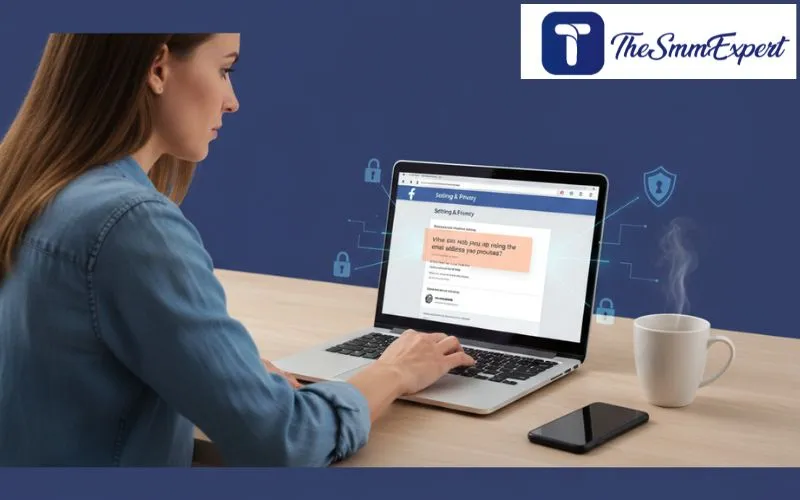
Making your profile less visible is key to staying private.
Set Your Profile To Friends Only
- Go to Settings & Privacy > Settings > Privacy
- Under Who can see your future posts?, pick Friends
- This stops strangers from seeing your posts and info
Hide Personal Info
- Visit your profile, click About
- Edit sections like birthday, contact info, relationship status
- Set each to Friends or Only Me to keep it private
Stop Search Engines From Showing Your Profile
- Go to Settings & Privacy > Settings > Privacy
- Uncheck Do you want search engines outside of Facebook to link to your profile?
Step 3: Control Friend Requests
Who can send you friend requests? This impacts how many strangers can find you.
- Go to Settings & Privacy > Settings > Privacy
- Look for Who can send you friend requests?
- Change from Everyone to Friends of Friends
It’s like closing your door to strangers but letting in friends of your friends.
Keep Your Friends List Private
- Open your profile and click the Friends tab
- Click Edit Privacy
- Set Who can see your friends list? to Only Me or Friends
Step 4: Review Tagged Photos and Posts
Tags can make you easy to find. Here’s how to keep control.
- Go to your profile and click Activity Log
- Filter by Photos and Videos or Posts to see tagged content
- Remove tags you don’t want by clicking the options menu and selecting Remove Tag
Also, turn on tag review:
- Go to Settings & Privacy > Settings > Profile and Tagging
- Enable Review posts you’re tagged in before they appear on your profile
- Enable Review tags people add to your posts before they show up
Step 5: Use Block and Restrict Features
Sometimes, you want to keep certain people away without deleting them entirely.
Blocking
Blocks someone from finding or contacting you at all.
- Go to their profile
- Click the three dots (…) near their cover photo
- Select Block and confirm
Restricting
Keeps them as a friend but limits what they see.
- Go to their profile
- Click Friends
- Select Restrict
Block Vs. Restrict At A Glance
| Feature | Block | Restrict |
| Profile Visibility | Invisible to blocked users | Visible but limited |
| Friend Status | Removed | Remains a friend |
| Messages | No messages allowed | Messages allowed |
| Posts Visibility | Cannot see posts | Sees only public posts |
FAQs
Can I Hide My Facebook Profile From Google And Other Search Engines?
Yes. Just disable the option in your Facebook privacy settings that lets search engines link to your profile.
Can People Find Me By My Phone Number Or Email?
You can stop that by setting your phone number and email visibility to Only Me in the privacy settings.
Is It Possible To Hide My Profile From Friends Of Friends?
Sort of. You can limit your posts and friend list visibility to Friends or Only Me, which helps reduce exposure to friends of friends.
Will Blocking Someone Make My Profile Unsearchable To Them?
Yes. Blocking stops that person from finding or seeing your profile. But it doesn’t hide you from everyone else.
Final Thoughts
Making your Facebook account unsearchable isn’t complicated. It’s about taking small, smart steps to protect your privacy. Adjust your settings, review who can see your info, and keep an eye on tagged posts. Your privacy is worth the effort. Remember: Privacy settings can change over time. So, check them now and then to stay safe. And enjoy Facebook your way.
If you want to build another Facebook profile for your work, business, or for dealing with clients, it is better to keep your main profile private. You can use a new profile just for your work. When you use an established account that has a natural activity history, the process can be easier. You will also avoid many rules and problems that show up when you use fresh pages.

